Using the timer
Start a timer when you start working. Finish it when you’re done, and it becomes a time entry with the arithmetic already done.
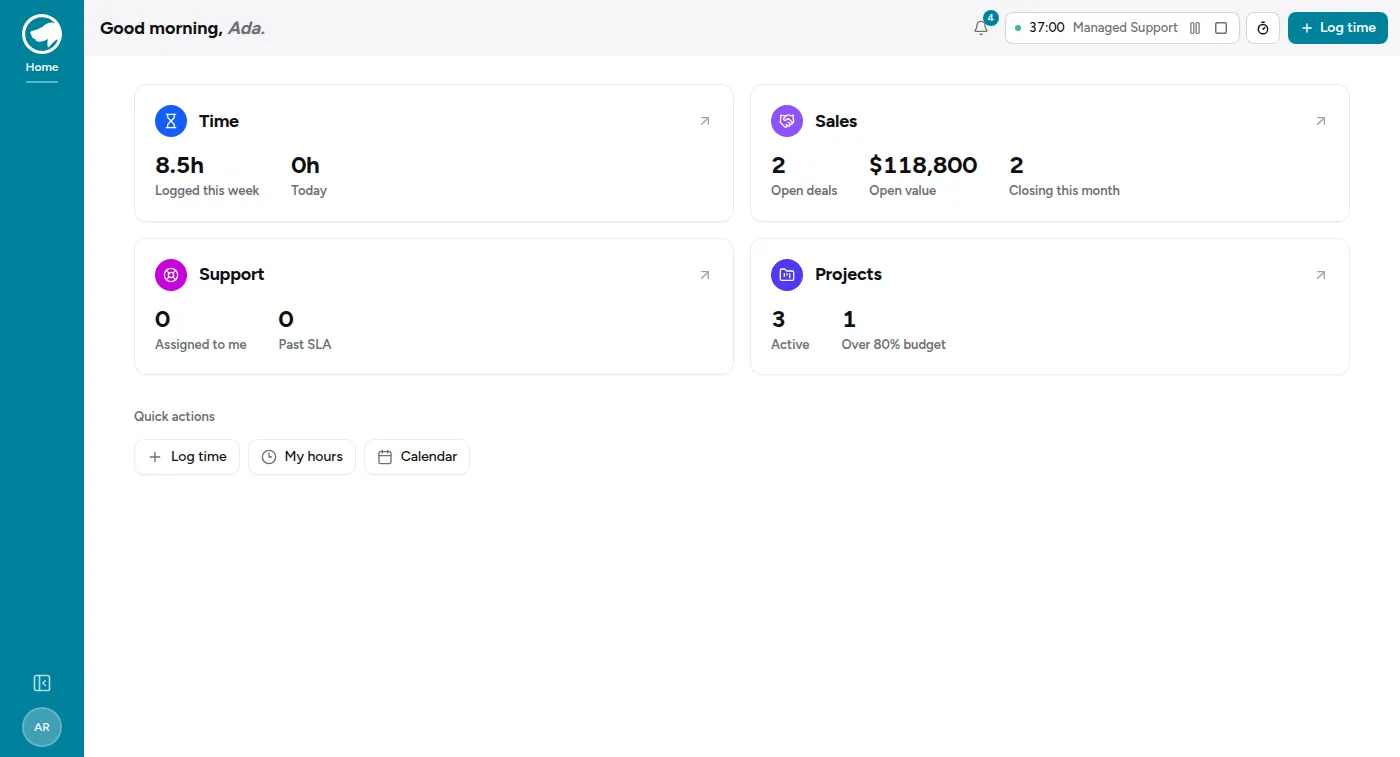
A running timer lives in the top bar of Time Tracking — elapsed time, the project it’s against, and a pause and a stop button. It’s there on every page in this module, so you don’t have to go back to one particular screen to stop it. The controls are Time Tracking’s, so they aren’t in the top bar of the CRM or the Service Desk; the timer keeps running while you’re over there all the same.
Start one
Section titled “Start one”-
Start a timer, and pick a project.
-
Optionally add a note now. Some projects require one — if yours does, you’ll be asked for it before the timer can finish.
-
Go and do the work. The timer keeps running while you’re elsewhere in the app, and it keeps running if you close the tab.
Finish it
Section titled “Finish it”Finish turns the elapsed time into a normal time entry. You get to check the details before it saves — same fields and same rules as if you’d typed it by hand.
From there it’s an ordinary entry. It appears on your calendar and you can edit it.
Pause, resume, and keeping several on the go
Section titled “Pause, resume, and keeping several on the go”This is the part worth knowing, because it’s more useful than it looks.
You can have as many timers as you like. Only one runs at a time.
Keep a timer for each thing you’re juggling. Start or resume any one of them and whichever was running pauses automatically — it doesn’t stop, and it doesn’t lose its accumulated time. Come back to it later and Resume picks up where it left off.
So a normal interrupted day looks like this:
- Timer on Contact Centre Migration, running.
- A support question comes in. Resume your Managed Support timer — the migration timer pauses itself.
- Deal with it, then resume the migration timer. Support pauses.
- End of the day, finish both. Two accurate entries, no arithmetic, nothing reconstructed from memory.
Your paused timers are listed under the running one, so you can see what’s on the go.
Discard
Section titled “Discard”Discard throws a timer away without creating a time entry. Use it when you started one by mistake or on the wrong project.
Discarding is the only way to lose a timer’s time — pausing never does.
If you forget to stop it
Section titled “If you forget to stop it”You will. Everyone does.
If a timer runs for 12 hours, the app sends you a Slack message asking whether you’re still on it. Nothing is written to your timesheet until you finish the timer, so one left running overnight doesn’t quietly log fourteen hours — it just sits there with a large number on it.
When you do finish it, correct the duration before saving. It’s far easier to fix in the moment than to reconstruct on Friday.
From Slack
Section titled “From Slack”If you’re already in Slack, you don’t need the app:
/timer start Migration Start a timer (partial project name is fine)/timer pause Pause it/timer resume Resume it/timer stop Finish it and write the entry/timer What's running?Add a note when you start with --:
/timer start Migration -- dial plan mapping