Using it from Claude
If you already work in Claude, you can log time and read reports there instead of opening the app. You connect it once, sign in with your normal Google account, and everything Claude does afterwards runs as you, with exactly the access you already have.
There’s nothing to install and no key to copy.
Connecting
Section titled “Connecting”The address to connect to is:
https://work.cloverhound.com/mcpClaude Desktop and claude.ai
Section titled “Claude Desktop and claude.ai”-
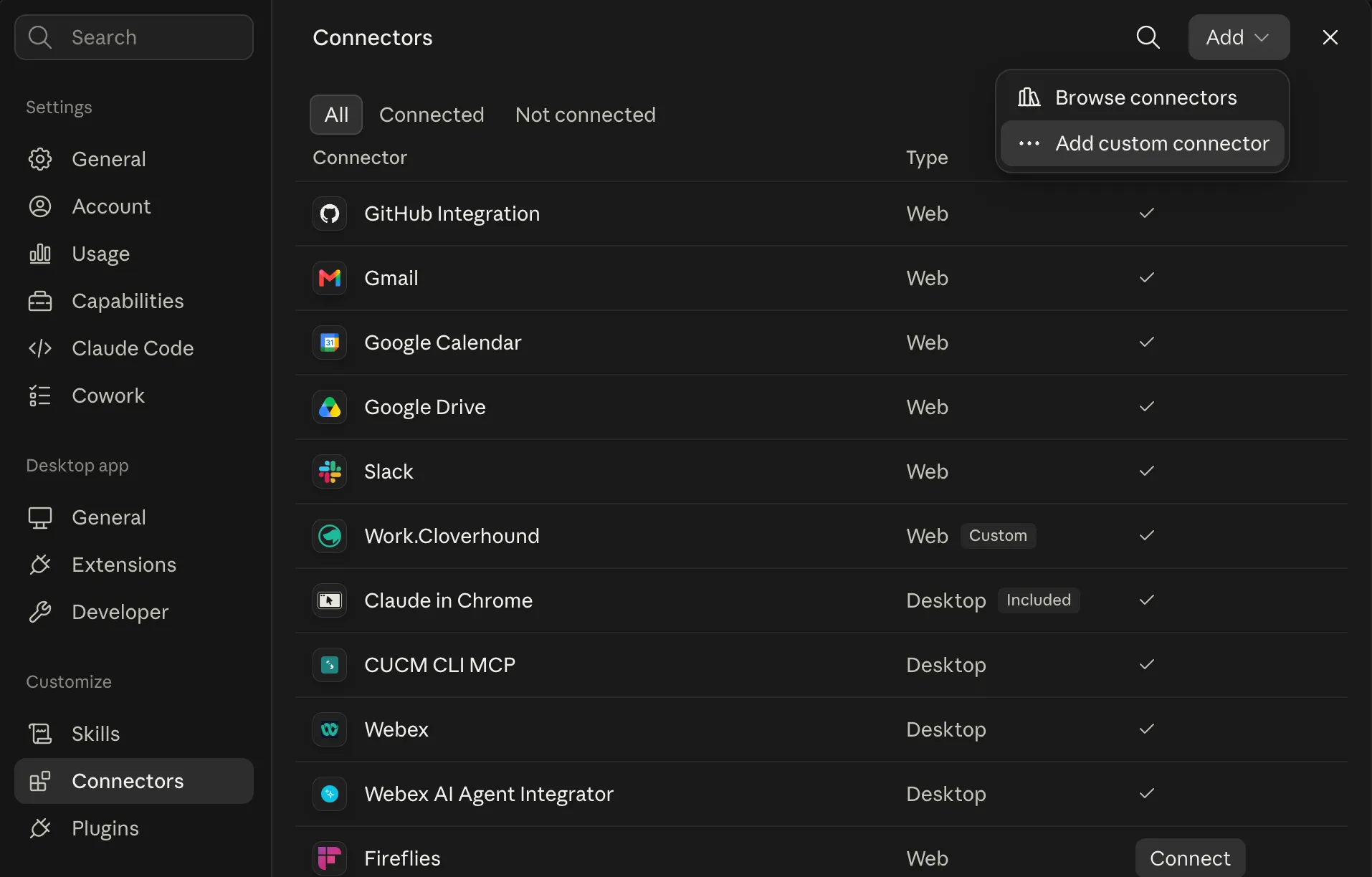
Open Settings → Connectors, then choose Add → Add custom connector.
-
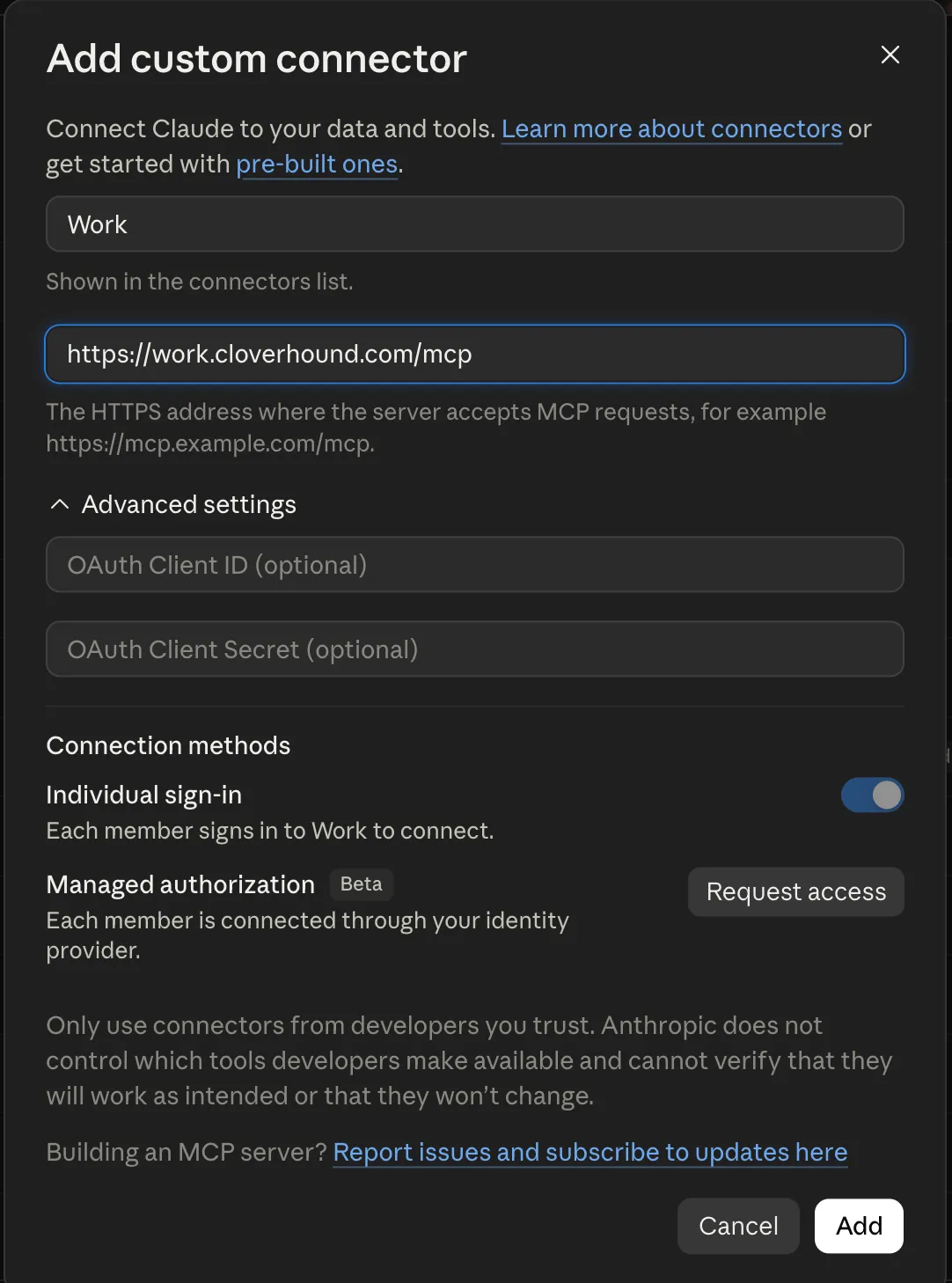
Name it and paste the address.
The name is only the label in your connectors list, so Work is fine. The second field takes the address above.
Leave Advanced settings alone — the OAuth client ID and secret are for servers that issue them in advance, and this one registers Claude automatically. Leave Individual sign-in switched on: that’s what makes the connection yours, so Claude sees exactly your access and nobody else’s.
-
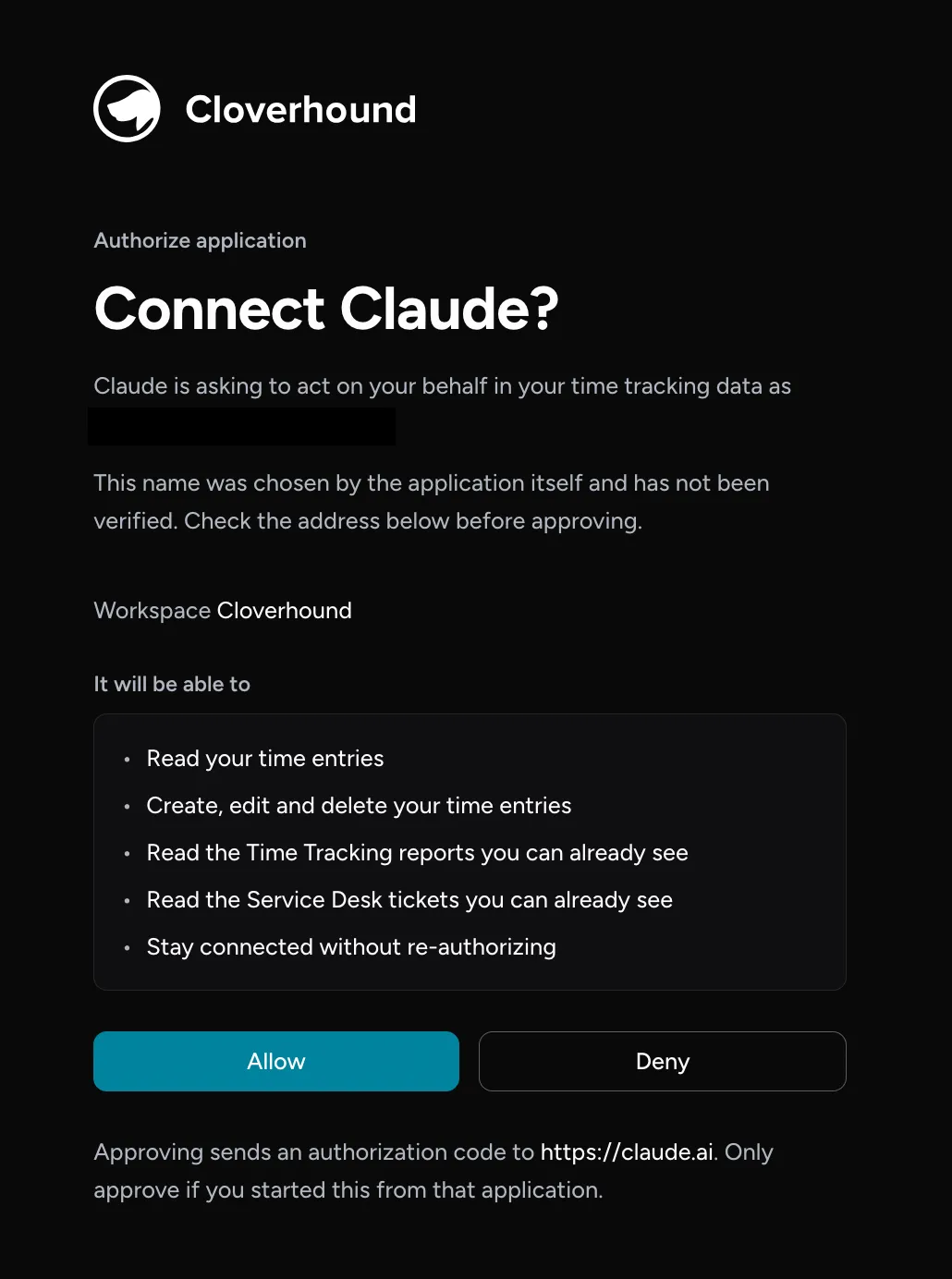
Sign in, then read the consent screen before approving.
See Before you approve — it’s worth the few seconds.
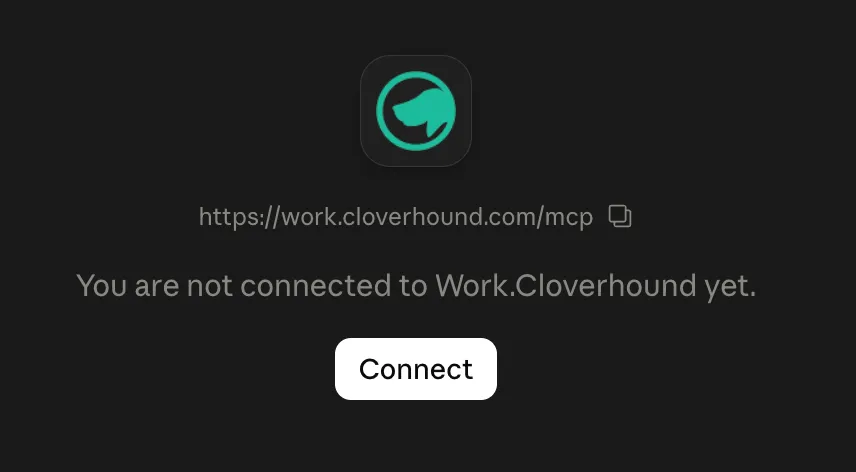
One connection covers Claude Desktop and claude.ai together; you don’t repeat it on each machine. If you come back later and it says you aren’t connected yet, Connect starts the same sign-in again.
Claude Code
Section titled “Claude Code”claude mcp add --scope user timeler --transport http https://work.cloverhound.com/mcpThen run /mcp, pick timeler, and finish signing in.
What you can ask for
Section titled “What you can ask for”You don’t call anything by name. Ask in plain language:
| Ask | What happens |
|---|---|
| “What projects can I log to?” | Lists the projects you’re assigned to. |
| “Log 2 hours on the Acme migration for yesterday” | Writes the entry. |
| “I worked 9:00 to 11:30 on the website redesign” | Works out the duration for you. |
| “Change Tuesday’s entry to 3 hours and make it non-billable” | Edits it. |
| “What did I log last week?” | Lists your entries with the total. |
| “How many hours did I bill in July?” | Your own summary, split billable and not. |
| “Which projects are over budget?” | Budget consumption per project. |
| “Pull every billable entry for Acme in Q2 and group them by person” | Pulls the raw rows and works it out in the conversation. |
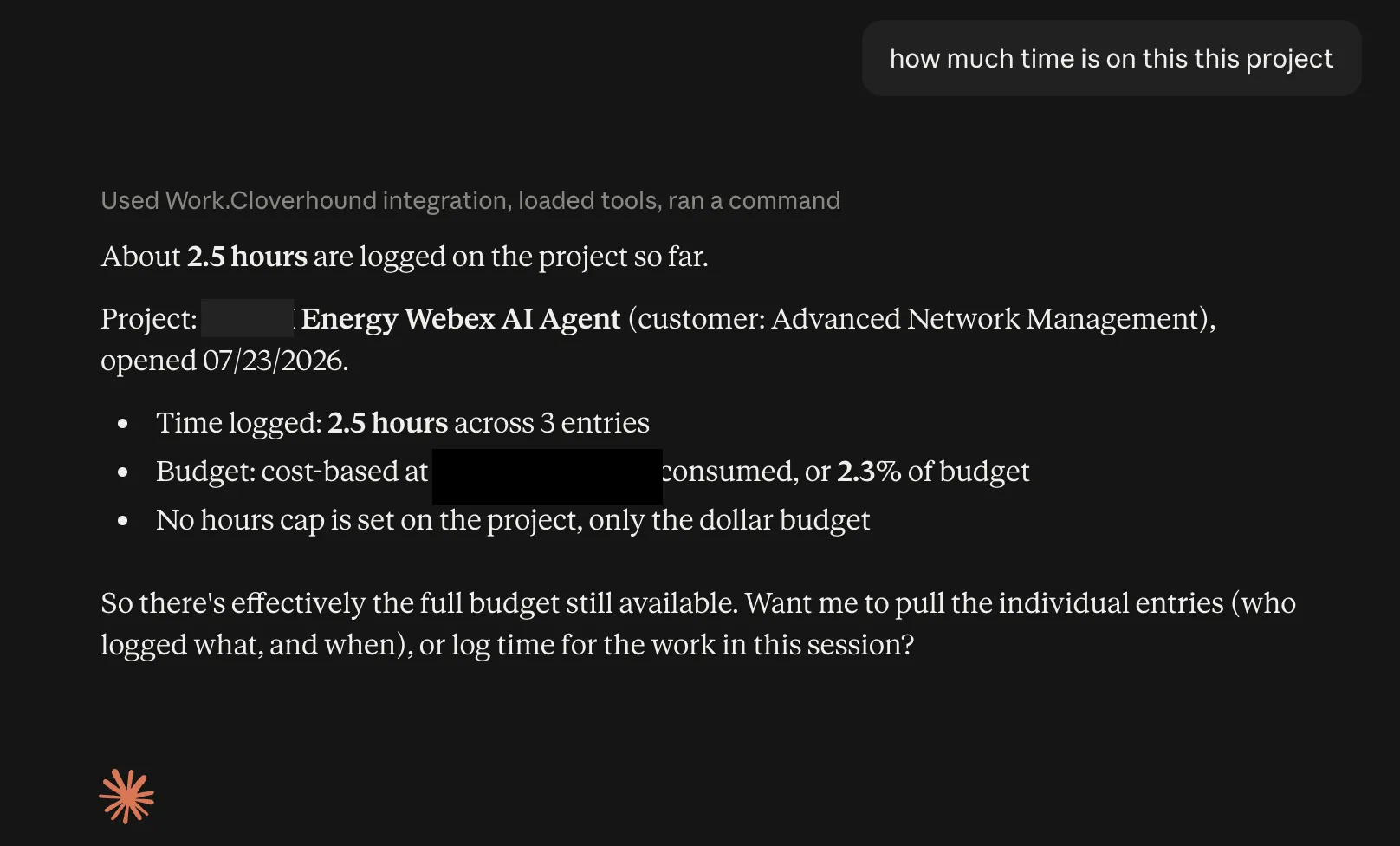
Notice what comes back with the answer — the project, the customer, the number of entries behind the total, and what share of the budget it represents. Asking a follow-up (“who logged what, and when?”) works the same way.
It can also look up Service Desk tickets in the queues you can reach. Creating and updating them isn’t supported.
Ticket contents never leave the app
Section titled “Ticket contents never leave the app”Ticket tools return metadata only — queue, state, priority, owner, responsible, company, requester, dates and SLA clocks. The subject line and every note and reply stay behind, for every ticket in every queue.
So Claude can tell you what’s breaching SLA, what’s unassigned, or how much is open for a company. It cannot tell you what any ticket says. To read one, open it in the app.
You can still search: a query matches a ticket number, or a word in a subject Claude never gets to see. It reports which tickets matched, not what they say.
Tickets in restricted queues are narrower again — number, queue, state, responsible and dates — and a query searches their numbers only, never their subjects. That holds even if you hold a grant on the queue and can read every word in the app: the restriction is about where the text may travel, not about who may read it.
The same rule follows tickets into the time tools. A time entry linked to a ticket carries the ticket’s number, never its subject.
Deciding what it can do without asking
Section titled “Deciding what it can do without asking”Once connected, the connector’s page in Settings → Connectors has a Tool permissions section, split in two:
- Read-only tools — looking things up. Set to Always allow by default, so questions get answered without interruption.
- Write/delete tools — logging time, editing an entry, deleting one. Set to Needs approval by default, so Claude asks before each.
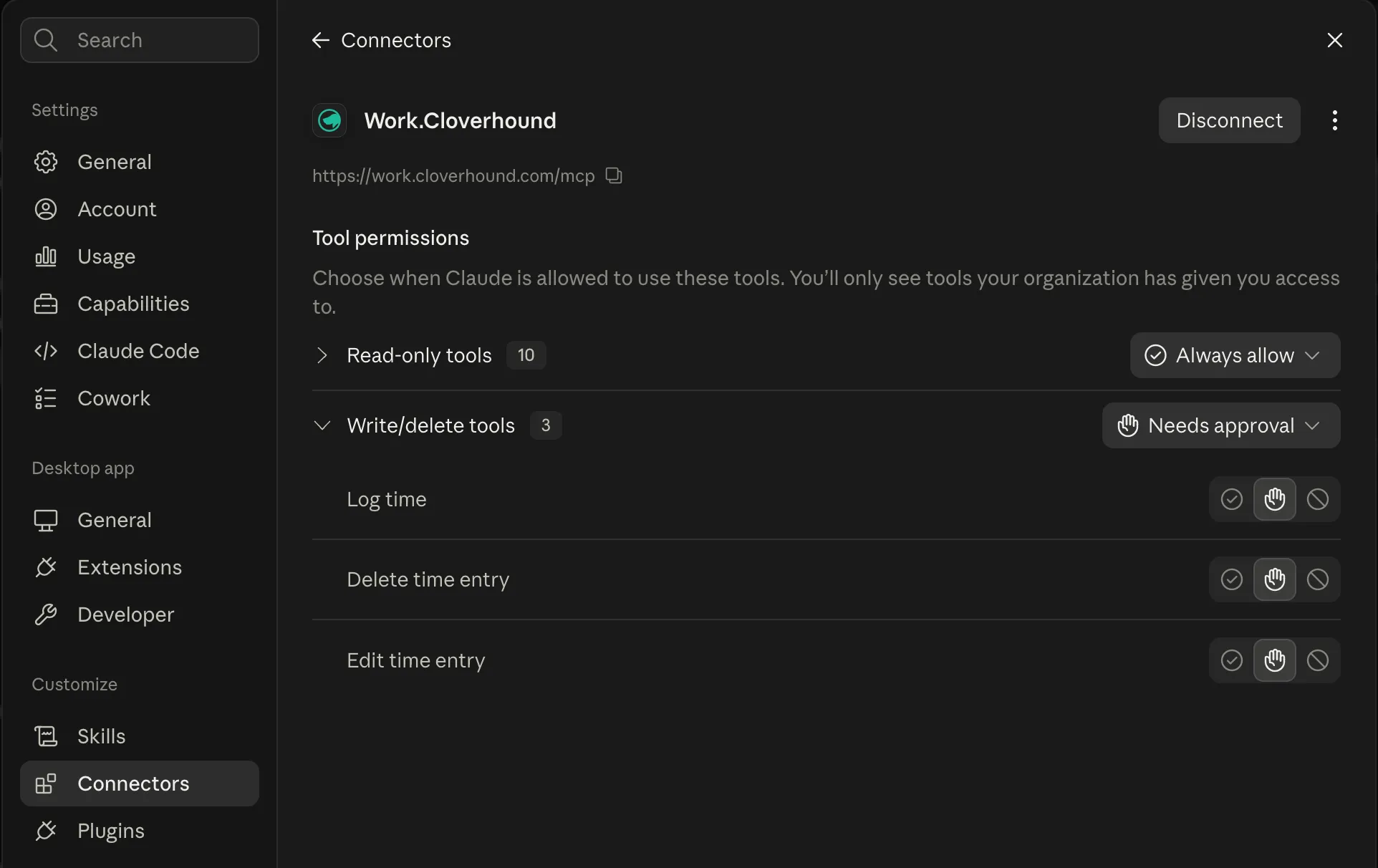
That split isn’t something you have to set up; the connector labels each tool as read-only or not, and Claude groups them accordingly. You can override any single one — always allow, ask each time, or never.
Things worth knowing before you rely on it
Section titled “Things worth knowing before you rely on it”Deleting is permanent. Time entries are deleted outright — there’s no archive and no undo. Claude will confirm with you first, but once it’s gone it’s gone.
Billable time may round up. If a project has a billing increment, a 45-minute billable entry can be stored as 60. Claude tells you when what was saved differs from what you asked for.
Some projects need a note. The entry is refused without one, and Claude will ask you for it.
Say the range out loud. Reports default to the last 30 days and the entry list to the last 14, so ask for “last quarter” explicitly rather than assuming. Every answer states the range it actually covered — worth reading, because an empty result can mean “nothing in that window” rather than “nothing at all”.
Reports show what you can already see. If you aren’t a Time admin, a team report covers those people’s hours on your projects, not their totals. The answer says so; repeat that when you pass the numbers on.
Before you approve
Section titled “Before you approve”The consent screen asks you to trust an application with your timesheet, so it’s worth a few seconds.
An application’s name is chosen by whoever registered it and isn’t verified by anyone — someone could register a connector calling itself “Claude”. What is checked, and what the screen shows you, is the address your approval is sent to:
Approving sends an authorization code to
https://claude.ai. Only approve if you started this from that application.
What it can and can’t do
Section titled “What it can and can’t do”Approving grants:
| Permission | What it covers |
|---|---|
| Read your time entries | Your own entries |
| Create, edit and delete your time entries | Your own entries — deleting is permanent |
| Read the reports you can already see | Narrowed to your projects unless you’re a Time admin |
| Read the tickets you can already see | Only queues you can reach, and metadata only — never subjects or replies |
| Stay connected | Saves you re-approving every hour |
A permission only ever narrows what’s possible. It can’t show Claude anything you couldn’t already open yourself: not other people’s entries, not projects you aren’t assigned to, not another organization.
It also can’t create or edit tickets, change anyone else’s time, touch billing or invoicing, alter settings, or manage users.
Disconnecting
Section titled “Disconnecting”There are two halves, and only one of them is the one that matters.
Removing the connector in Claude — Settings → Connectors → Disconnect, or
claude mcp remove timeler in Claude Code — stops Claude from asking.
To stop the app from answering, open Profile → Connected apps and press Disconnect there. That’s the one to use if you think it was approved by mistake, or it’s on a machine you no longer have. It kills the access token, the refresh token and any pending authorization immediately, rather than at the end of the hour.
An operator can do the same across a whole organization — which is what you want when someone has left.
If it doesn’t work
Section titled “If it doesn’t work”It says it needs authentication and nothing happens. Finish signing in on the browser window it opened. If none opened, check for a blocked pop-up.
It connects but has no tools. Disconnect and reconnect. If it persists, tell an admin — the server records what happened.
It can’t see any projects. You may not be assigned to any yet. Check the Time module in the app; the connector only offers what you can log against.
It says you logged no time when you know you did. Ask which dates it looked at. It’s almost always a range that didn’t reach far enough back.