Logging time
Four ways in, depending on how you work.
The form
Section titled “The form”Log time in the nav. Best when you know exactly what you’re recording.
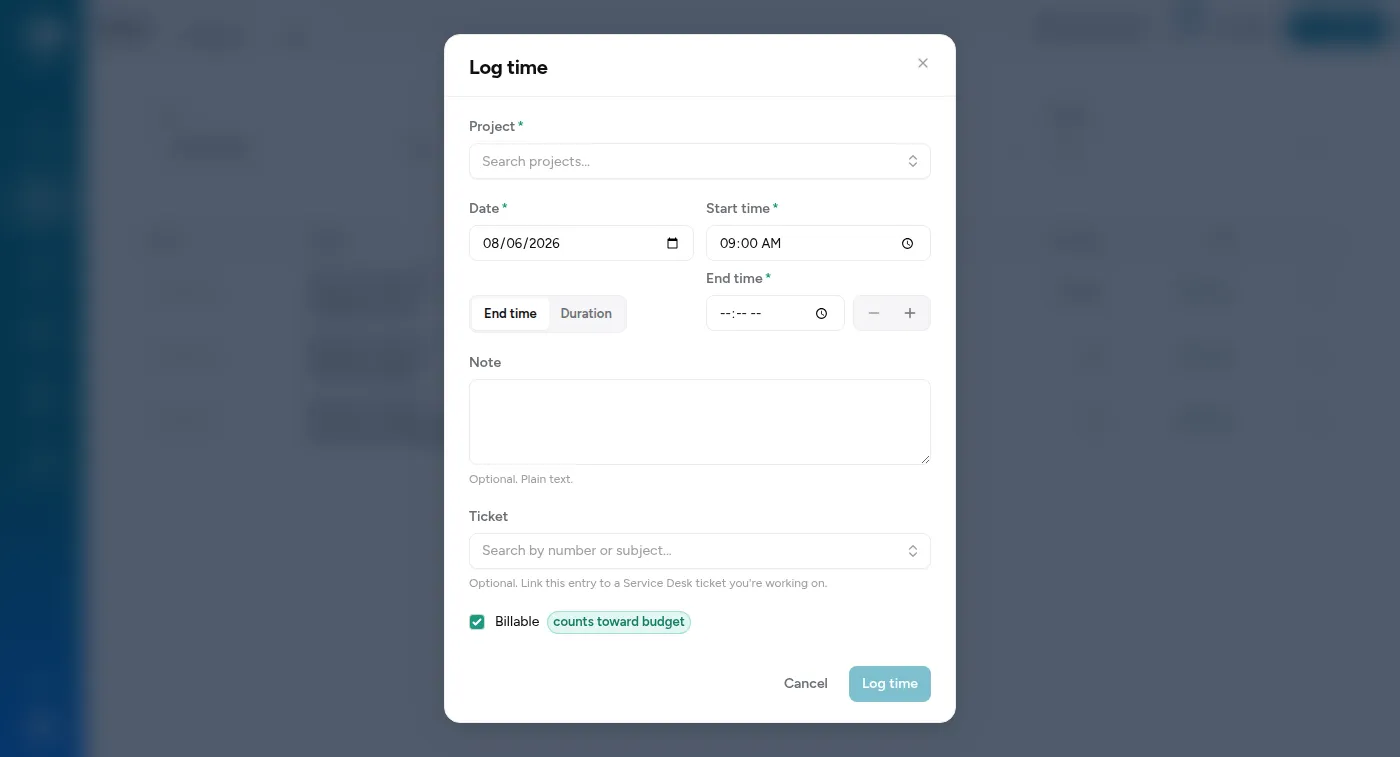
| Field | Notes |
|---|---|
| Project | Only projects you’re on. Missing one? You’re not assigned yet. |
| Phase | Only appears if the project has phases. |
| Date | Defaults to today. Backdating is fine. |
| Start time | Defaults to 09:00. This form asks for one — entries with no start time come from the calendar’s Untimed row or the full-week action. |
| End time or duration | Pick with the toggle, then give whichever you know. In Duration mode you can enter minutes (90) or hours (1:30). |
| Billable | On by default, and marked counts toward budget so you can see what it does. |
| Note | Required on some projects; the form tells you which. |
| Znuny ticket | Links the entry to a support ticket, when Znuny is set up. |
The calendar
Section titled “The calendar”Click an empty slot on your week and the form opens with that day and time already filled. Best for reconstructing a day you didn’t log as you went.
Entries without a start time land in a tray above the calendar rather than in a slot — they happened that day, but not at a particular hour. That’s a normal way to log; it just can’t be drawn on a grid.
The timer
Section titled “The timer”Start it, stop it, done. See using the timer.
If you live in Slack, you can log from there without opening the app. Your admin can point you at the commands.
Logging a full week
Section titled “Logging a full week”One action fills a standard week for you: five 8-hour days, Monday to Friday, on one project. It’s built for people assigned full-time to a single project, as a starting point you then correct.
The entries it writes have no start time, so they land in the calendar tray rather than in slots — and they aren’t rounded.
Fixing an entry
Section titled “Fixing an entry”Open it and change it. Your own time is yours to edit.
Two exceptions:
- Entries imported from Timely are read-only. They came from the old system and are kept as history. If one is wrong, tell an admin — it can’t be edited here.
- Once time has been billed, it stops being editable. It’s on an invoice a client has; changing it would make the record disagree with what was sent.
If an admin edits one of your entries, that’s recorded — who, what, and when.
Rounding
Section titled “Rounding”Some clients are billed in fixed blocks. On those projects your duration is rounded up to the next block when you save: on a 15-minute project, 20 minutes becomes 30.
It’s set per project — a phase can set its own — and comes from the client’s contract. Rounding applies only when the entry is billable and has a start time; a non-billable entry, or one with no start time, is left exactly as you typed it.
It happens at save time, so what you see afterwards is what will be billed.
Log without opening the app:
/timelog Opens the log-time dialog right there in Slack/timer-today What you've logged today/timer-week Your week so farThere’s more in using the timer for driving timers from Slack.