Joining your organization
You can’t sign yourself up. Someone in your organization invites you, and that invitation is the only way in — there’s no “create account” link anywhere, because there’s deliberately no such page.
That sounds restrictive until you consider what it prevents: nobody lands in your company’s data because they happened to have the right email domain.
Accepting the invitation
Section titled “Accepting the invitation”You’ll get an email with a link. Open it and you’ll see this:
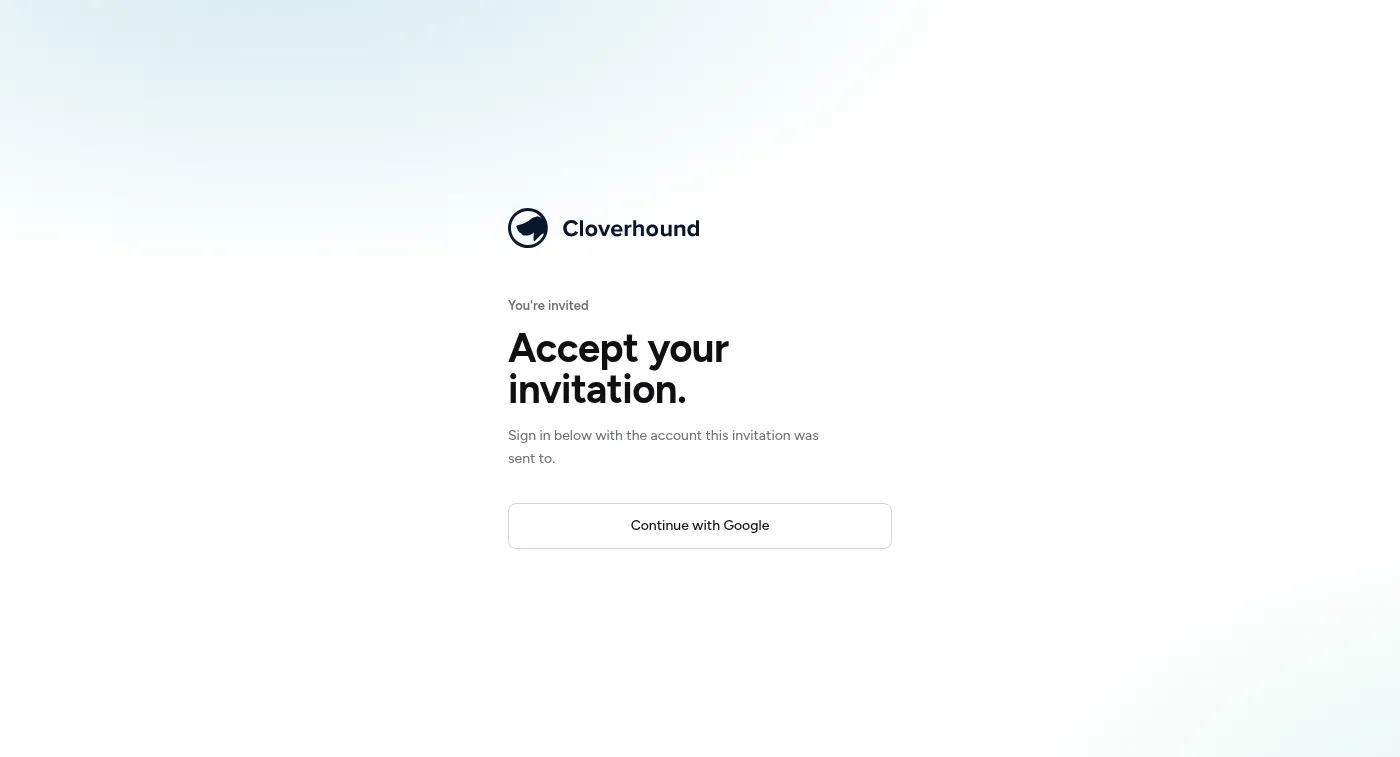
Click Continue with Google and sign in with the address the invitation was sent to. That’s the whole process — no password to choose, no profile to fill in. You’ll land in the app already signed in.
Notice what this page doesn’t say: it doesn’t name your organization, and it doesn’t tell you whether your link is still good. That’s not an oversight. Mail scanners follow every link in every email, so this page is identical for a live link and a dead one — if it reported the difference, anyone who got hold of an invitation URL could test it.
Microsoft accounts are invited differently
Section titled “Microsoft accounts are invited differently”If your organization signs in with Microsoft, the invitation link is not how you get set up. Accepting an emailed invitation requires your identity provider to prove it owns the address, and only Google does that — a Microsoft tenant’s email address is an attribute its own administrators can change, so accepting an invitation on the strength of it would be a way in for anyone who could set it.
So your admin links your Microsoft identity to your account directly instead. There’s nothing for you to click; once it’s done, Continue with Microsoft signs you in like normal. If you were sent an invitation link and Microsoft is your provider, go back to whoever invited you rather than trying to make the link work.
If it doesn’t work
Section titled “If it doesn’t work”Invitation links expire after 7 days, and they’re single-use. Both are on purpose: the link is the credential, so one that worked forever, or twice, would be a standing way into your organization’s data for anyone who ever saw the email.
Because the invitation page itself can’t tell you any of this, you find out after signing in with Google — you get bounced back to the sign-in page with a message:
| Message | What it means | What to do |
|---|---|---|
| You need an invitation to sign in. Ask an admin to invite you. | The link was expired, already used, or you signed in with a different address | Ask for a fresh invitation |
| This account has been archived. Contact an admin if you need access restored. | You had an account here and it’s been archived | Ask an admin to restore it |
Whoever invited you can reissue the invitation from the admin area. Issuing a new link invalidates the old one, so use the most recent email you were sent — an older link in your inbox will fail even if it hasn’t expired yet.
Signing in from then on
Section titled “Signing in from then on”After the first time, go straight to the app and use the same Continue with Google or Continue with Microsoft button. There’s no separate password for this app and never will be: your identity provider is the only thing that authenticates you, which is also why your name and email aren’t editable in your profile.
If you belong to more than one organization you land in whichever you used last, and you switch between them from the account menu in the left-hand rail. See Finding your way around.