Your calendar
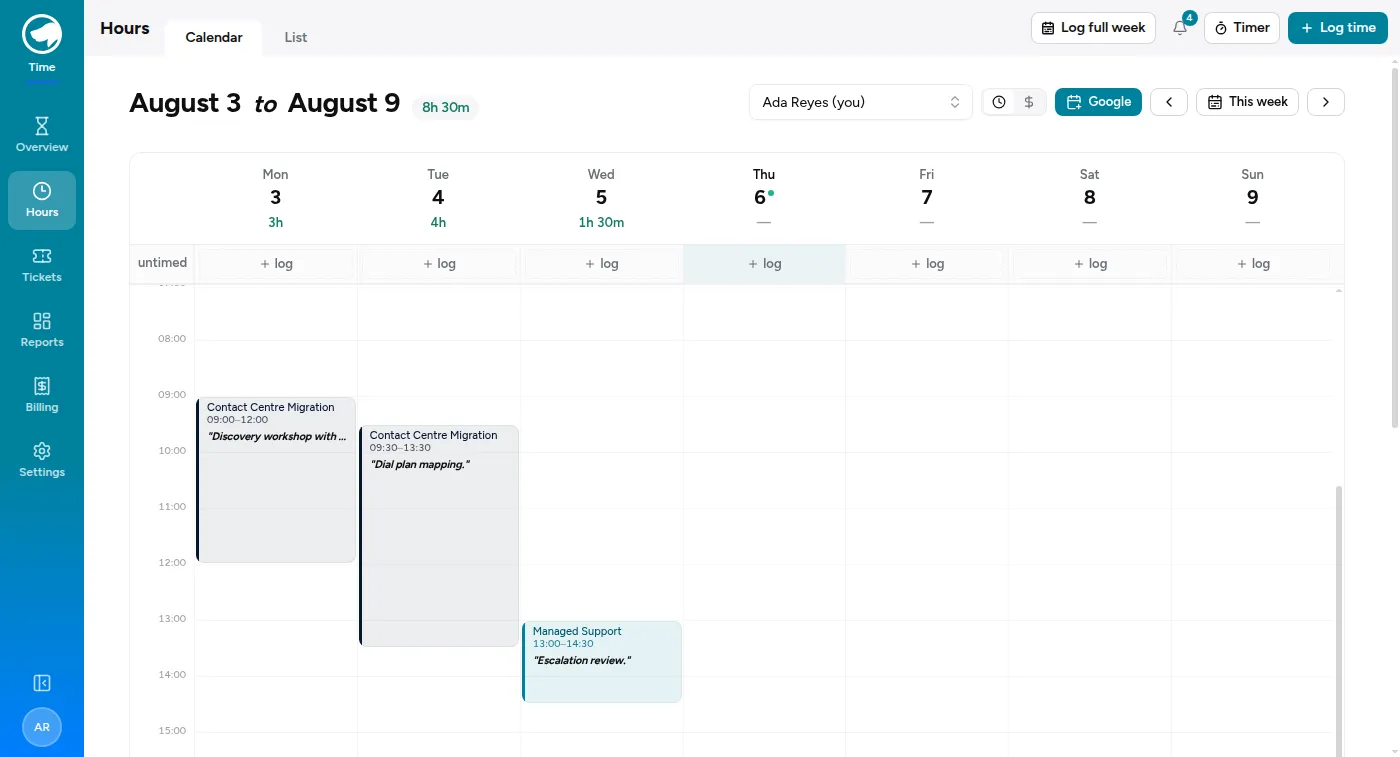
The calendar shows your week — what you’ve logged, laid out by day and hour. It’s the fastest way to spot the afternoon you forgot to record.
Log by clicking
Section titled “Log by clicking”Click any empty slot and the log-time form opens with that day and start time already filled. Fill in the rest and save.
This is the easiest way to reconstruct a day you didn’t log as you went: look at the gaps, click them, fill them.
The Untimed row
Section titled “The Untimed row”The row above the grid, marked UNTIMED, is for entries that have no start time.
An entry needs a start time to be drawn in a slot — but plenty of real work doesn’t have one. You know you spent two hours on something on Tuesday; you don’t know it was 2pm. Those entries are just as valid, and they sit in the Untimed row for that day instead.
That’s where everything logging a full week creates ends up, too.
To add one, use + LOG in the Untimed row rather than clicking a slot.
Project colours
Section titled “Project colours”Every entry is tinted by its project, so a glance at the week tells you how it was split without reading a single label.
The colours are assigned automatically and never move on their own. If you want a particular project to be a particular colour — the one client you’re watching most weeks, say — an admin can set it on the project’s own page, and it changes for everyone.
Hours or dollars
Section titled “Hours or dollars”The small clock / $ switch at the top decides which number the week is counted in. Leave it on the clock and every total reads as time; flip it to the dollar sign and the same week re-reads as money — the week total beside the date range, each day’s column heading, every entry in the grid, and the Amount column in the table below it.
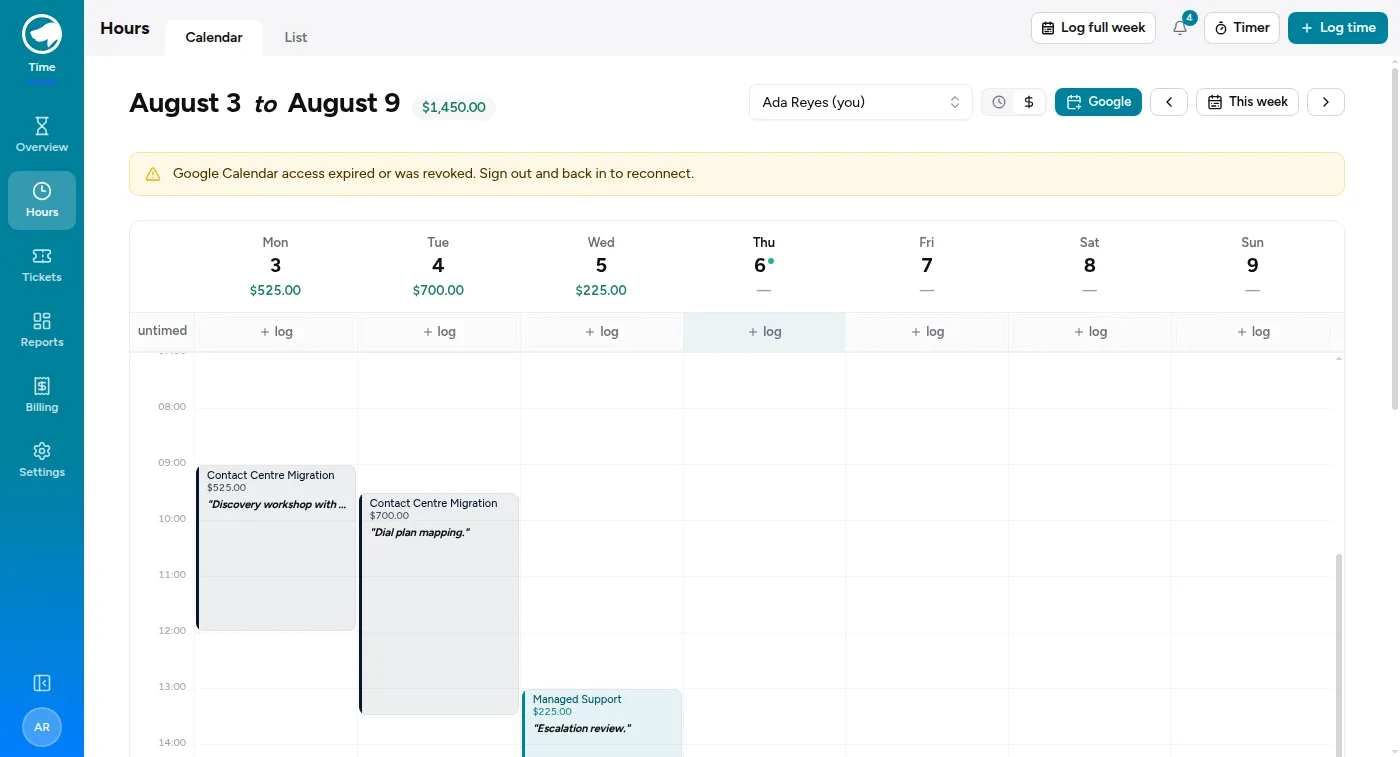
Nothing about your entries changes — it’s the same week, counted differently. An entry’s amount is its duration at the rate that was saved with it, so this is what the week is worth, not an estimate.
Work with no amount shows a dash rather than $0.00: non-billable time, and time on a project with no rate, genuinely have no figure to show. A day made up entirely of that kind of work shows a dash for its total too.
The switch stays where you left it, in this browser, until you move it again.
Whose week you’re looking at
Section titled “Whose week you’re looking at”The picker at the top says Ada Reyes (you). If you’re an admin you can switch it to someone else; if you’re not, you’ll only ever see yourself.
Your Google Calendar alongside it
Section titled “Your Google Calendar alongside it”Turn on the overlay toggle and your Google Calendar meetings appear behind your time entries.
There’s nothing to connect — you granted read access when you signed in with Google, so it’s already there when you want it. The toggle is off until you ask for it.
It’s read-only: the app can see your meetings and can never change them, add to them, or delete them. You only ever see your own, and turning the overlay on doesn’t show your calendar to anyone else.
Its whole job is answering “what was I doing on Tuesday afternoon?” from your meetings rather than your memory. Turn it on, fill the gaps, turn it off.
What you can’t see here
Section titled “What you can’t see here”Only your own time. If you need to see a project’s total, or somebody else’s week, that’s the project and report pages — and depends on what you’re allowed to see.