What the Service Desk is
The Service Desk is where customer requests live. A customer emails you, fills in a form, or writes to you through the portal; that becomes a ticket, the ticket lands in a queue, and somebody picks it up.
It’s an optional module. If Support isn’t in your left-hand rail, your organisation hasn’t turned it on — an admin does that under Feature Flags, and you’ll also need access to at least one queue before you see any work.
The shape of it
Section titled “The shape of it”- A ticket is one customer request, start to finish. It has a number
(
TKT-44-260803-0013), a title, and a conversation. - A queue is the tray it sits in — Support, Network Operations, Billing. Queues are how work is divided up, and they’re also how access is granted.
- A requester is the person who asked. They’re a contact at a company, not a member of your staff.
- State says where the ticket is (new, open, pending customer, resolved, closed). Priority says how much it matters. Type says what kind of thing it is (Incident, Request, Problem, Change).
Finding your work
Section titled “Finding your work”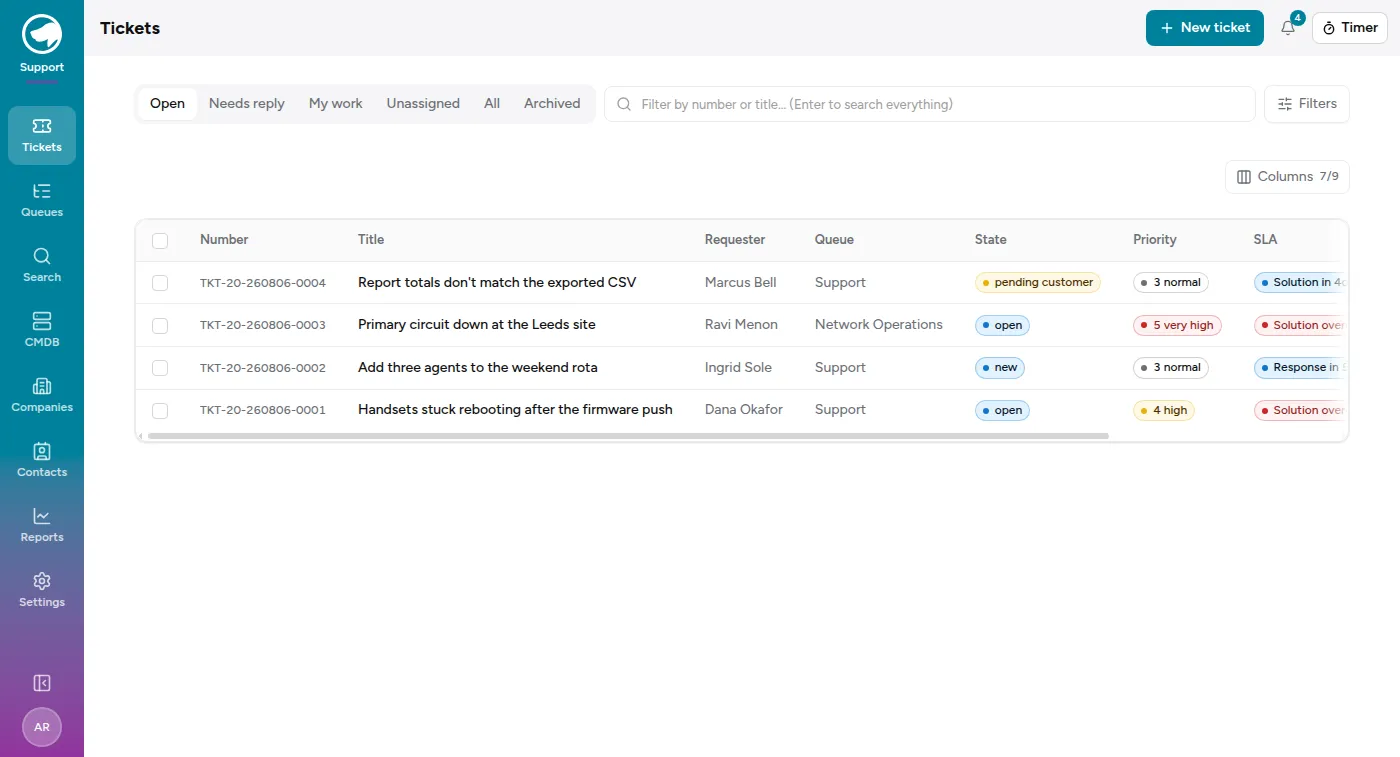
Tickets in the rail opens the list, and it opens on Open — everything live in the queues you can reach. The other tabs narrow it:
- Needs reply — the customer wrote last and nobody has written back. This is the tab worth checking first thing.
- My work — tickets assigned to you.
- Unassigned — nobody has picked these up yet.
- All — including the closed ones.
- Archived — tickets taken out of circulation.
A ticket lands in Needs reply the moment a customer’s message arrives, and leaves it when someone sends a reply the customer can actually see — an internal note doesn’t count, because the customer never saw it. While a customer is waiting, the SLA column shows the reply deadline rather than the solution one, since that’s the clock with a person on the other end.
Add the Waiting column from Columns to see how long each customer has been waiting, and sort on it to put the longest wait at the top.
The box next to the tabs filters the visible list by number or title as you type. Press Enter and it searches everything instead, including the text of the conversations — that’s the same engine behind Search in the rail.
Filters opens the rest: queue, state, priority, type, assignee, company, contact, service, and when the ticket was created. And Columns lets you choose what the table shows, because eight columns is more than most people want at once.
Shift reports, and other exports
Section titled “Shift reports, and other exports”Export next to the filters hands you the tickets the current filters match — one row each, as CSV or Excel — rather than the ones you ticked. It’s the answer to “send me what came in”, and it carries every column the table can show plus the service, whether the ticket closed, and the hours logged against it.
The Created filter is what makes a shift report possible. Each end takes a date and, optionally, a time:
- Leave the time blank and the date means the whole day, as it always has.
- Set both times and you get exactly that window — including one that crosses
midnight. A night shift running 7:00 PM to 7:00 AM is
From 7:00 PMon one date andTo 7:00 AMon the next.
Both ends are inclusive, so a ticket raised at exactly 7:00 AM appears in the night shift’s file and again in the morning’s. Times are read in your own time zone — worth agreeing on if the person running the export and the person reading it aren’t in the same one.
Search
Section titled “Search”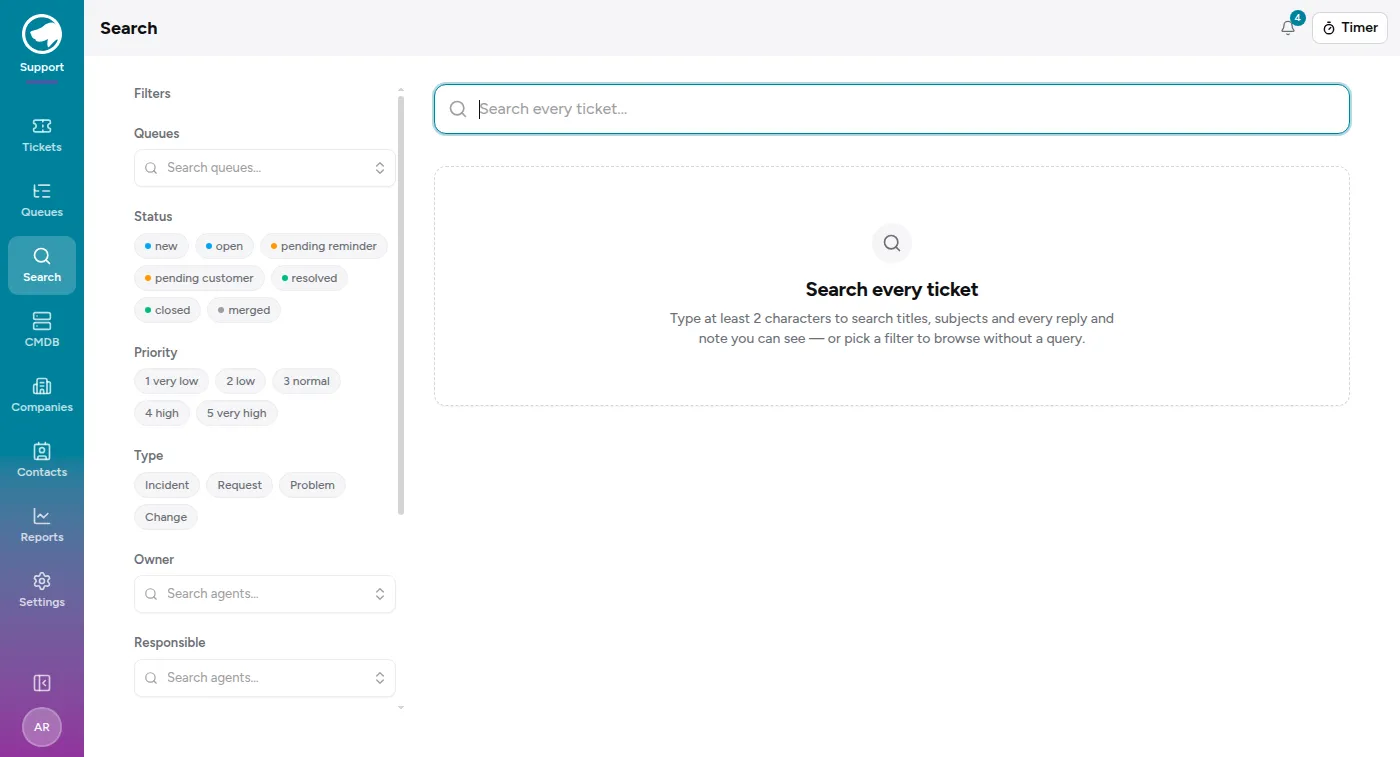
Search in the rail is the same engine given room to breathe. Type two characters or more and it searches titles, subjects, and the body of every reply and note — not just the subject line, which is what makes it the right tool for “we’ve had this problem before, what did we do last time?”
You don’t have to type anything. Pick filters alone — queue, status, priority, type, assignee, company, contact, service, a date range — and it browses rather than searches, which is how you answer “everything still open for this customer”.
How tickets arrive
Section titled “How tickets arrive”- Email. A queue can have an address. Mail sent there becomes a ticket, and replies to an existing ticket join its conversation rather than starting a new one.
- The portal. Customers with a portal login can raise and track tickets themselves. See What your customers see.
- An agent. New ticket at the top right, for when someone phones.
- The API, and inbound webhooks from another system.
Where to go next
Section titled “Where to go next”- Working a ticket — the day-to-day job.
- Queues and who can see them — why you might be looking at an empty list.
- States, priorities and types — the words, and how to change them.