Queues and who can see them
Queues are trays. A ticket sits in exactly one, and which queues you can reach decides which tickets exist as far as you’re concerned.
The Queues page
Section titled “The Queues page”Queues in the rail shows the tree with a live count against each one: how many are open, how many are unassigned, and how many sit in sub-queues beneath it. View tickets → takes you into the list already filtered.
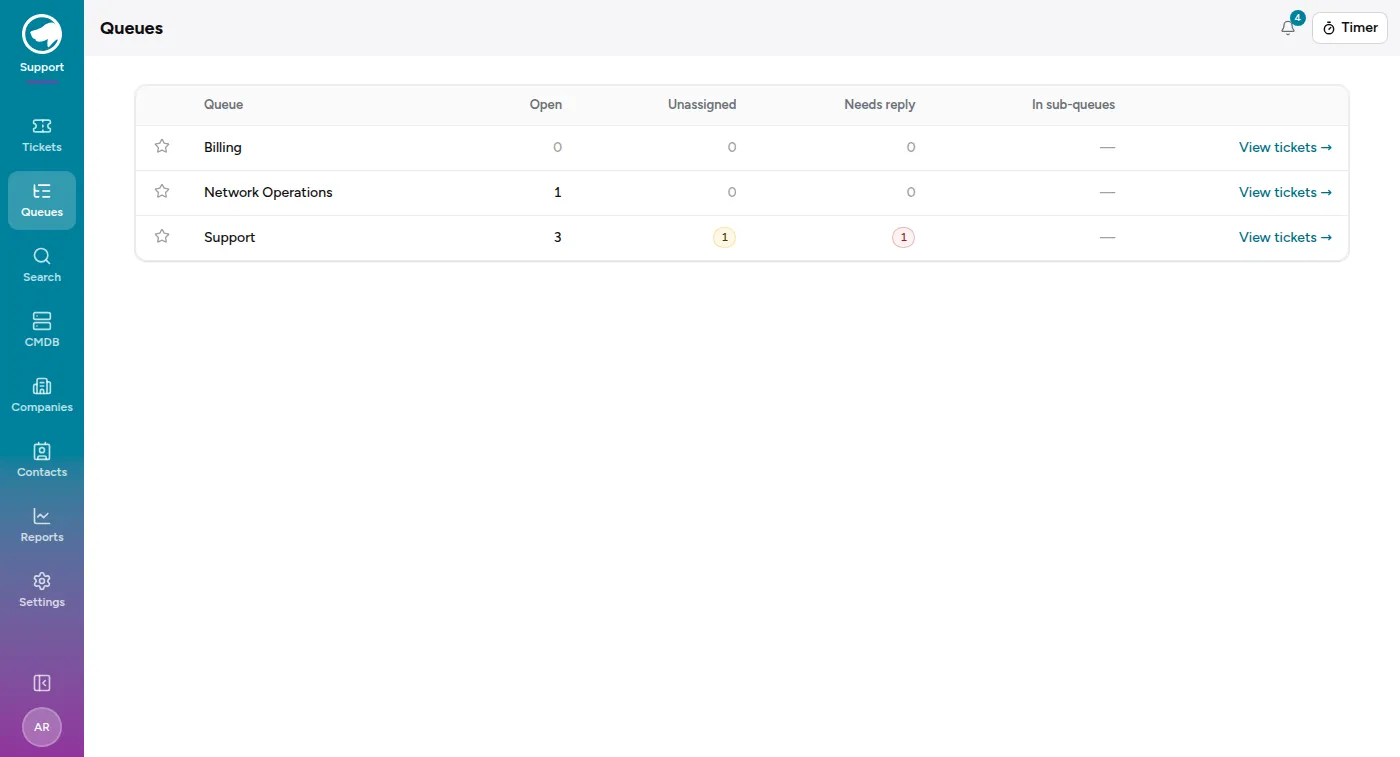
The Day-to-day toggle narrows the page to the queues you’ve said you actually work, rather than every queue you’re technically allowed to open. It’s a personal preference, not a permission — it never hides a queue from someone who needs it, and it never grants one.
Queues nest. A queue can have a parent, and the tree is how you get “Support → Billing” without inventing a naming convention.
Access is granted, never assumed
Section titled “Access is granted, never assumed”Grants live under Settings → Access. You can grant a queue to a person or to a team, and a grant carries down the tree: granting a parent queue grants what’s under it.
Restricted queues are the exception. A queue marked restricted acts as a fence — reaching anything at or below it needs its own explicit grant, and a grant on some queue further up won’t reach through. That’s what you use for the tray with the sensitive tickets in it.
Settings → Teams is where you make a grant reusable. A team is a named group of people; grant the team a queue and everyone in it gets the queue. When someone joins, you add them to the team instead of remembering which eleven queues the last person had.
Team grants and personal grants are treated identically, including at a restricted fence. A team never gets you somewhere a person couldn’t.
Queue settings
Section titled “Queue settings”Settings → Queues is where the queue itself is configured:
- Email address — mail sent here becomes a ticket in this queue.
- Auto-acknowledgement — whether a requester gets an automatic “we’ve got it” reply, and which one.
- Signature — the wording appended to outbound mail from this queue.
- Default priority — what new tickets start at.
- Reopen on customer reply — whether a customer answering a closed ticket brings it back to life, or starts a new one.
- Workflow — which set of allowed state transitions applies here.
- Satisfaction survey — whether closing a ticket here asks the customer to rate the service.
Turning the satisfaction survey off
Section titled “Turning the satisfaction survey off”Some queues carry work you deliver under someone else’s name, where a survey from you is the one message that gives the arrangement away. Clearing Ask the customer to rate the service on a queue stops all of it: no survey email when a ticket closes, no rating on the portal, and any invite already sent stops working.
It applies to the queue and everything under it, so switching it off on a customer’s top-level queue covers every sub-queue — including ones added later by someone who never heard about the arrangement. A sub-queue shows No — from parent in the queue list when that’s why it’s off.
Ratings already collected are untouched. They stay in the satisfaction report and in your overall score; turning the survey off stops future ones, it doesn’t rewrite history.
Routing mail to the right queue
Section titled “Routing mail to the right queue”Settings → Mail routing decides what happens to an incoming email when the address alone isn’t enough. Rules run in order, and each is a set of conditions plus what to do when they all match.
Conditions test the recipient, from, cc, subject, body, list-id, or any named header, with equals, contains, starts with, ends with, domain is, or a regular expression. (Domain is only makes sense on an address field, and the form won’t let you use it elsewhere.)
When a rule matches it can set the queue, type, priority, service or SLA, assign the ticket to an agent, suppress the auto-acknowledgement, stop further rules from running, or drop the message entirely. A rule has to do at least one of those — a rule that matches and then does nothing is a trap for whoever reads it next.
Without any matching rule, mail goes to the queue whose address it was sent to.