Notifications
The app tells you when a customer replies, when a budget tips over, when an SLA breaks. It can tell you three ways — in the app, on Slack, by email — and you decide which, for each of 31 kinds of event.
That sounds like a lot of dials. In practice you’ll touch about four of them.
The inbox
Section titled “The inbox”The bell in the top bar carries an unread count; clicking it opens your inbox.
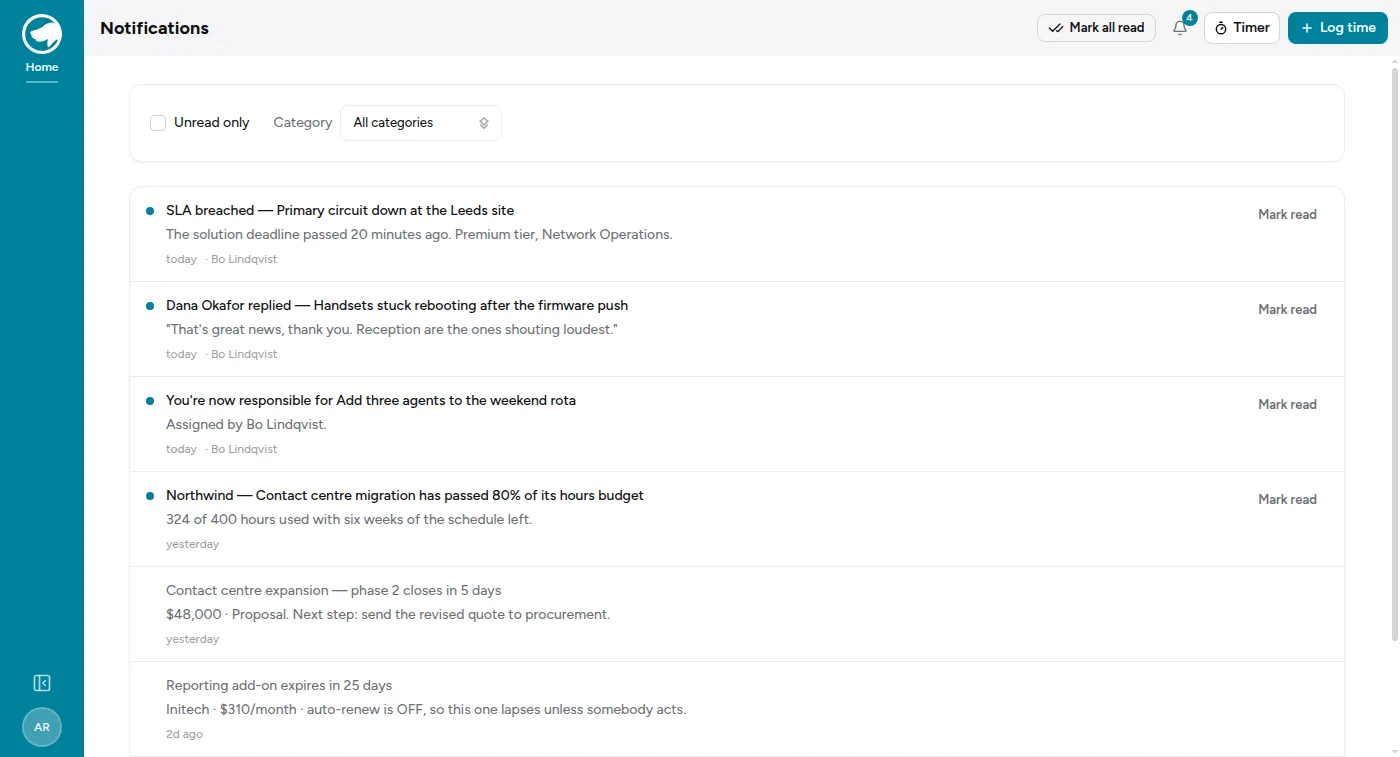
Unread items carry a dot. Each row says what happened, adds a line of detail, and where it makes sense links to the thing itself — click the SLA breach and you land on the ticket that breached.
Mark read clears one; Mark all read clears the lot. The filters narrow by category (Service Desk, Sales, Time Tracking, CMDB, Integrations, Account & security) or to unread only.
The three channels
Section titled “The three channels”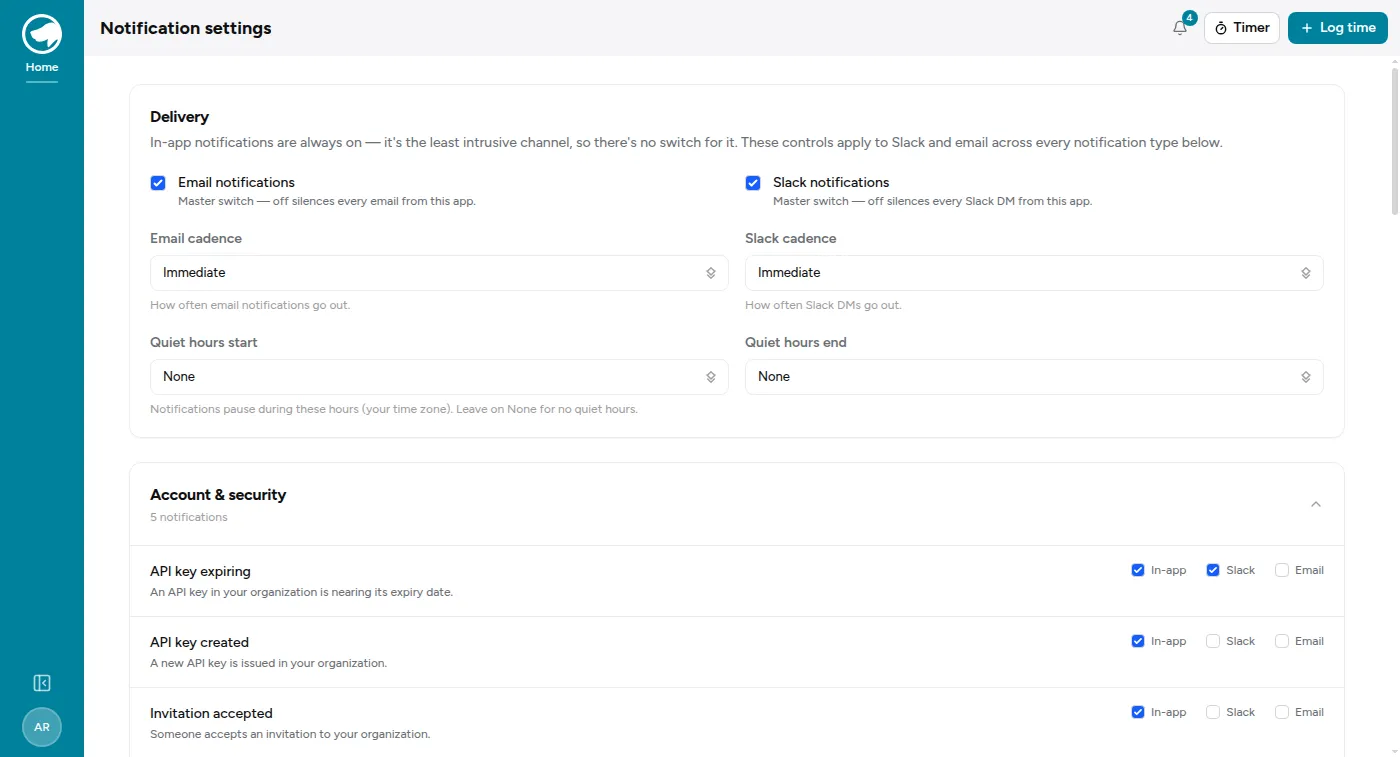
At the top of Notification settings are the blunt instruments:
- Email notifications / Slack notifications — master switches. Off silences that channel completely, whatever the per-event toggles below say.
- Email cadence / Slack cadence — Immediate or Daily digest, set separately per channel. A common setup is Slack immediate, email digest.
- Send routine notifications on weekends — off by default. See below.
- Slack me right away about my tickets — on by default, and the one exception to the two settings above. See below.
- Confirm what I do from Slack — on by default. Covered below too.
Below that, every event type gets its own three checkboxes. A few carry an extra choice — New ticket in a queue asks whether you mean tickets assigned to you or everything in the queues you work day to day, which is the difference between a handful a day and a firehose.
Weekends
Section titled “Weekends”The app’s routine daily messages don’t go out on Saturday or Sunday. That’s three things: the daily digest, the quiet-contributor reminder (“you haven’t logged time in a while”), and the API key expiring warning. None of them is about something that just happened, and none of them is worth a Saturday.
Nothing is dropped. The digest’s contents come with Monday morning’s digest, and the two reminders are re-checked every day — if you’re still quiet on Monday, you’ll hear about it on Monday.
If you’d rather keep the daily rhythm through the weekend, tick Send routine notifications on weekends and all three go back to seven days a week on both channels.
Quiet hours
Section titled “Quiet hours”Set a start and an end and notifications pause between them, in your own time zone. The window may cross midnight — 22:00 to 07:00 is what most people want.
The important part, and the bit people get wrong:
Leave either end on None for no quiet hours. Setting both to the same hour also means no quiet hours, rather than a 24-hour silence.
Your own tickets always reach Slack straight away
Section titled “Your own tickets always reach Slack straight away”Slack me right away about my tickets is on unless you turn it off. With it on, a Slack DM about a ticket assigned to you, or one you are watching, is sent the moment it happens — it ignores your Slack cadence and your quiet hours. A customer replying on your ticket, or a ticket landing on your name at 23:00, is something you’d want to know about tonight rather than at 08:00 tomorrow.
What it deliberately doesn’t cover:
- Your queues. Tickets that are merely in a queue you work, without your name on them, still follow your cadence and quiet hours. That traffic is the reason the digest exists.
- Email. Only Slack jumps the queue; your email cadence is untouched.
- Everything outside Service Desk. Sales, Time Tracking and the rest are unaffected.
It can only change when a DM arrives, never whether one does. If the Slack master switch is off, or you’ve unchecked Slack for that event, nothing is sent either way. Turn the setting off if you’d rather your own tickets waited for the digest with everything else.
Confirmations for what you do from Slack
Section titled “Confirmations for what you do from Slack”Replying, adding an internal note or changing a state from a ticket card in Slack sends you a one-line confirmation: “Replied to the customer on CHWRK-33-260807-0007.”
These are receipts, not notifications — they’re about something you did a second ago, not something that happened to a ticket. That’s why they arrive whatever your master switch, cadence and quiet hours say, and why they don’t care whether you own the ticket.
They do land in the same direct message as your notifications, which makes them easy to mistake for one. Confirm what I do from Slack turns them off. With it off, the dialog closing is the confirmation — and a failure would have kept the dialog open with the reason on the field, so nothing goes unreported.
Turning it off never silences “You don’t have access to that ticket.” That message isn’t a receipt: a button you’re not allowed to press opens nothing and posts nothing in the channel, so without it there’d be no way to tell it apart from a broken one.
What ignores your settings
Section titled “What ignores your settings”Two events are delivered immediately on every channel no matter what you’ve set — no digest, no quiet hours, no per-event toggle:
- Support access granted — Cloverhound support has been given temporary, time-boxed access to your organization’s data. You are meant to find out while it’s happening, not tomorrow morning.
- SLA breached — the deadline has already gone. A digest tomorrow is a record, not a notification.
Everything else respects what you set.
Repeats are collapsed
Section titled “Repeats are collapsed”If the same event fires repeatedly about the same thing, you get one notification, not twenty — while an unread one is sitting there, further copies within 30 minutes are folded into it. A ticket that flaps between states won’t bury the rest of your inbox.
Once you’ve read it, the next occurrence notifies you again. That’s the point: collapsing is there to stop a storm, not to hide the second thing that happened.
Where to start
Section titled “Where to start”If you’re setting this up for the first time and don’t want to read 31 rows:
- Leave in-app alone. It’s free and it’s complete.
- Turn Slack on for the handful of things you’d want interrupted for — customer replied, assigned to a ticket, SLA breached. Anything on a ticket that’s yours will reach you immediately.
- Put email on Daily digest and let it be the safety net.
- Set quiet hours to your evening.
Then adjust when something annoys you. The default set is deliberately middle-of-the-road, and the fastest way to find your setting is to notice which notification you resented and switch that one off.