Reports that send themselves
Most reports are something you go and fetch: open the page, pick a range, click Export CSV or Export XLSX. A scheduled report turns that around. You describe it once — which report, what period, how often, who gets it — and from then on it builds itself and arrives by email.
The obvious use is the monthly one. On the 1st, everyone who needs last month’s ticket list has it, and nobody had to remember.
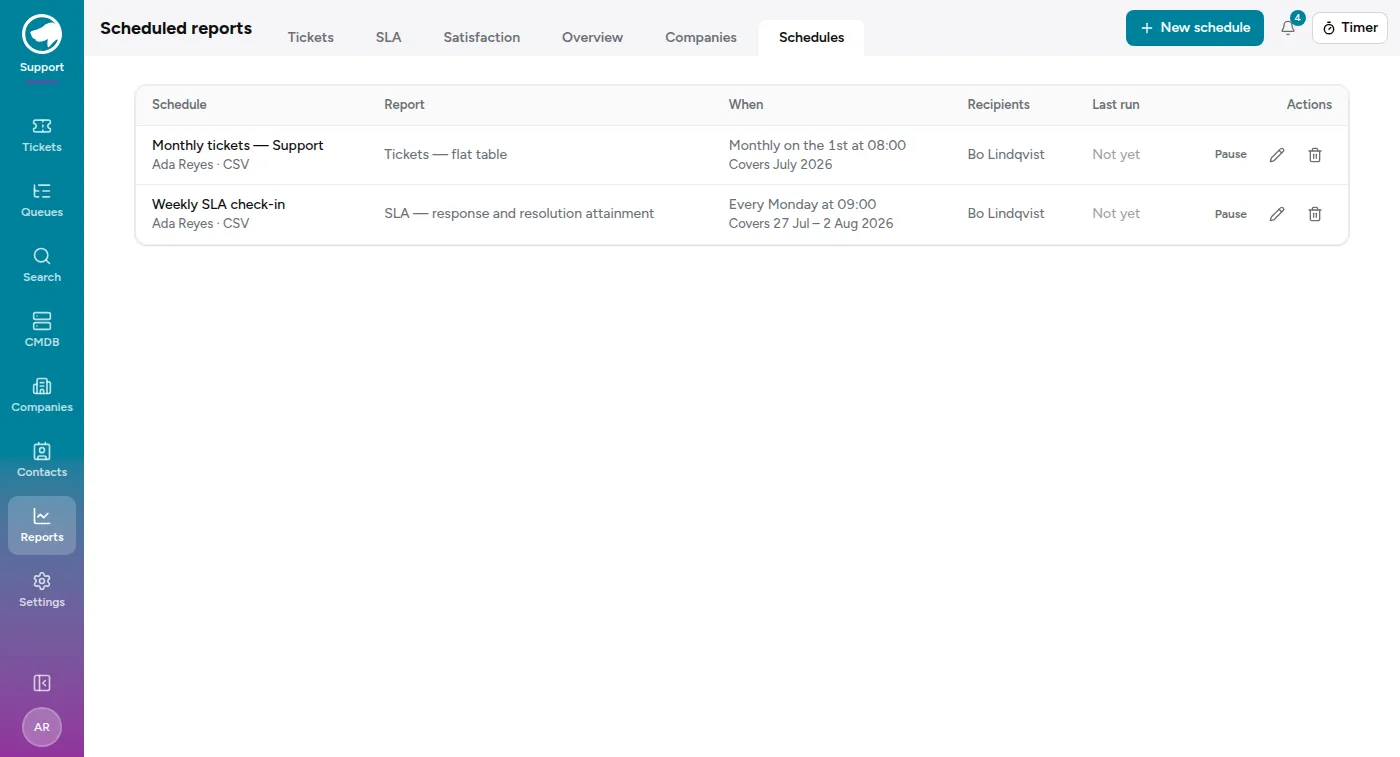
Setting one up
Section titled “Setting one up”Every report section has a Schedules entry — under Service Desk reports it’s a tab alongside Tickets and SLA; on the Sales and Time Tracking report pages it’s a Schedule this report button. Either way you land on the same form.
You choose:
- Report — one of the reports you can already open. If you can’t reach a report, it isn’t offered here.
- Period covered — last month, last quarter, last week, month to date, and so on. You’re picking a rule, not dates: “last month” means whatever last month is on the morning it sends.
- Cycle starts on the — only when you’ve chosen Monthly cycle. See below.
- How often — daily, weekly on a chosen day, or monthly on a chosen date.
- Time — the hour it goes out, in your organization’s timezone.
- Format — CSV or Excel. Every report offers both; the Excel version is a branded workbook with the numbers written as real numbers, so it sorts and totals without any cleanup.
- Send to — the people who get it.
Service Desk reports also let you narrow to particular queues, which is what makes “the monthly report for this one queue” a two-minute job.
When your month doesn’t start on the 1st
Section titled “When your month doesn’t start on the 1st”Plenty of billing runs on its own calendar. If yours closes on the 25th, Previous month is the wrong period — it would hand you the 1st to the 31st every time, which is not the month you invoice.
Pick Monthly cycle as the period, then say which day the cycle opens on. Choose the 26th and every run covers the 26th of one month to the 25th of the next.
It behaves like the other “previous” periods: it always covers the cycle that has closed, never the one you’re in the middle of. So a run on the 26th of August and a run on the 3rd of September both carry 26 July – 25 August — which day you send on is a separate choice, and changing it doesn’t change the numbers.
The form tells you what you’ve chosen as you choose it (“Worked out each time it runs, from the 26th of one month to the 25th of the next. Today that would be 26 Jun – 25 Jul 2026”), and the file arrives named for both dates rather than for a month it only half covers.
Cycle start days stop at the 28th too, and for a firmer reason than the send day does: a cycle opening on the 29th has no February to close in, so its length would change every year.
Who sees what
Section titled “Who sees what”A scheduled report shows the data as its owner sees it. You built it, so it’s built from your access — your queues, your projects. Everyone you send it to receives that same file.
That’s worth a moment’s thought before you add people. It isn’t a leak — you can only schedule reports you can already open, and everyone on the list has to be able to open that report too — but a colleague reading your monthly ticket export is seeing your view of the queues, which may be wider or narrower than their own.
Two things follow from that, and both happen without you doing anything:
- Someone who can’t open the report can’t be added to it. Put them on the list and they’re left off, with a note saying so.
- Someone who loses access stops receiving it. If a colleague moves off the Service Desk, they stay on the list — so you can see they’re there — but the file stops going to them. The run history records the skip and why.
Checking it actually sent
Section titled “Checking it actually sent”Each row in the list shows how the last run went — the period it covered, how many rows it found, and how many people it reached. Click through for the full history: every run, with a Download for the file it produced and a line per recipient saying whether they got it.
That last part is the bit people go looking for. “Sent to 3, skipped 1” doesn’t help anyone until it says which one and why.
A run can also fail outright, and the commonest reason is the plainest: the owner lost access to the report. Since the file is built from their access, there’s nothing sensible to send, so nothing is sent, and the run says so in red.
Pausing and deleting
Section titled “Pausing and deleting”Pause stops a schedule sending while keeping its setup and its history — right for a report you’ll want back next quarter. Delete removes it along with its past runs and their files.
Files don’t last forever either way: a run’s file is kept for 90 days. The history is there to answer “did last month’s report go out”, not to be an archive — if you need to keep one, download it.
Reports you can schedule
Section titled “Reports you can schedule”Anything you can open:
- Service Desk — the flat ticket table (one row per ticket, with queue, state, assignment, requester, service, whether it closed, and time logged against it), ticket volume and aging, SLA attainment, customer satisfaction responses, and the per-company rollup for module admins.
- Sales — the pipeline summary and the quarterly grid.
- Time Tracking — revenue by company, project budgets, and utilization.